> ## Documentation Index
> Fetch the complete documentation index at: https://docs.lovi.ai/llms.txt
> Use this file to discover all available pages before exploring further.
# Phone Numbers & Voice AI
> Import your phone numbers and connect them to your Voice AI Assistants.
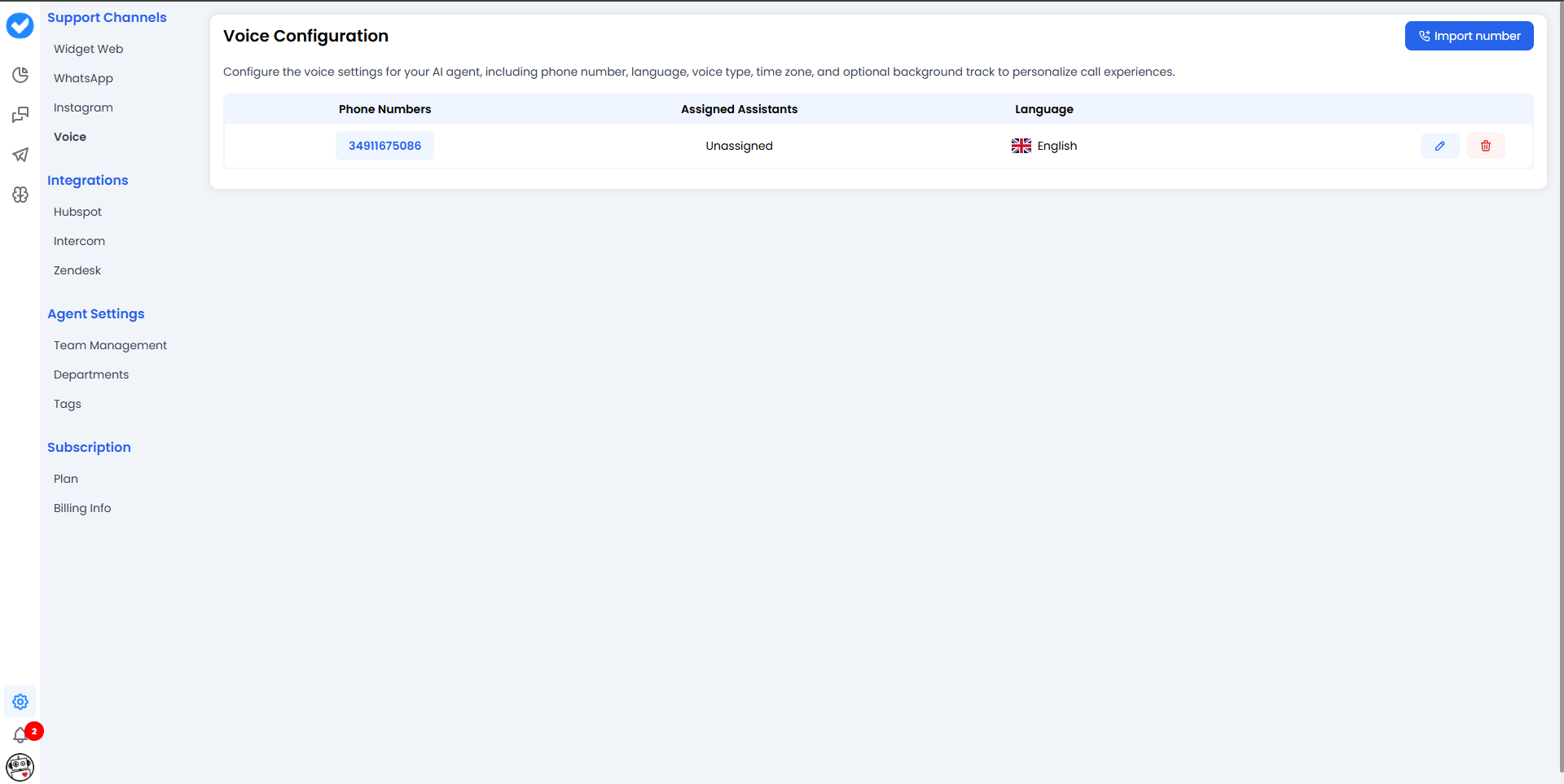 Having a phone line is only half the job; **having someone answer it is where the real magic happens.**
This section is where you connect the outside world (your telephony providers) to your platform's brain. Here you can bring in your existing numbers from **Twilio** or **Ringover** and assign them a Voice AI Assistant to answer calls for you.
***
### 📥 1. How to import a number (Step-by-step)
To start, click the main **Import Number** button. The system will ask you who your current provider is. Depending on your choice, the process changes slightly:
#### Option A: Import from Twilio 🔴
If you select Twilio, an import sidebar will open looking like this:
Having a phone line is only half the job; **having someone answer it is where the real magic happens.**
This section is where you connect the outside world (your telephony providers) to your platform's brain. Here you can bring in your existing numbers from **Twilio** or **Ringover** and assign them a Voice AI Assistant to answer calls for you.
***
### 📥 1. How to import a number (Step-by-step)
To start, click the main **Import Number** button. The system will ask you who your current provider is. Depending on your choice, the process changes slightly:
#### Option A: Import from Twilio 🔴
If you select Twilio, an import sidebar will open looking like this:
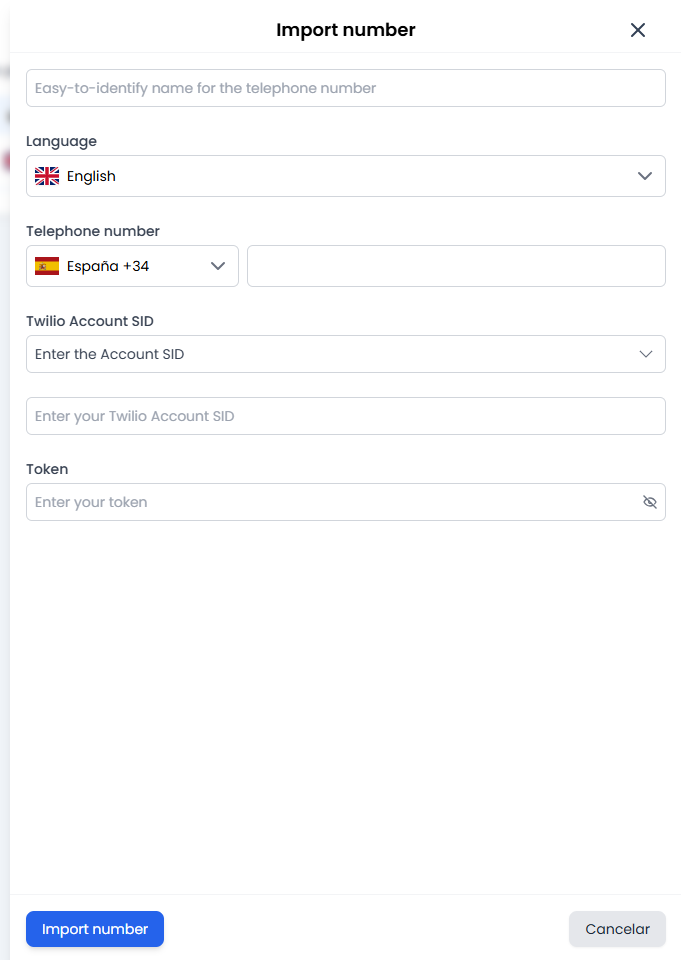 Here you will need to fill in the connection details:
* **Internal Name:** Give it a name to help you identify it (e.g. `Sales_Support_Spain`). *Note: Your customers won't see this name; it’s strictly for your internal use.*
* **Language:** Select the main language for the line. All EU and US languages are available.
* **Phone Number:** This is split into two parts. First, select the **dialling code** (e.g. +34 for Spain, +1 for the US) and then type in the **line number** without the dialling code.
* **SID & Token:** These are the "keys" to your Twilio account. The **SID** identifies your account, and the **Token** gives us secure permission to verify and use it.
#### Option B: Import from Ringover 🟢
If you select Ringover, the process is much faster and more straightforward:
Here you will need to fill in the connection details:
* **Internal Name:** Give it a name to help you identify it (e.g. `Sales_Support_Spain`). *Note: Your customers won't see this name; it’s strictly for your internal use.*
* **Language:** Select the main language for the line. All EU and US languages are available.
* **Phone Number:** This is split into two parts. First, select the **dialling code** (e.g. +34 for Spain, +1 for the US) and then type in the **line number** without the dialling code.
* **SID & Token:** These are the "keys" to your Twilio account. The **SID** identifies your account, and the **Token** gives us secure permission to verify and use it.
#### Option B: Import from Ringover 🟢
If you select Ringover, the process is much faster and more straightforward:
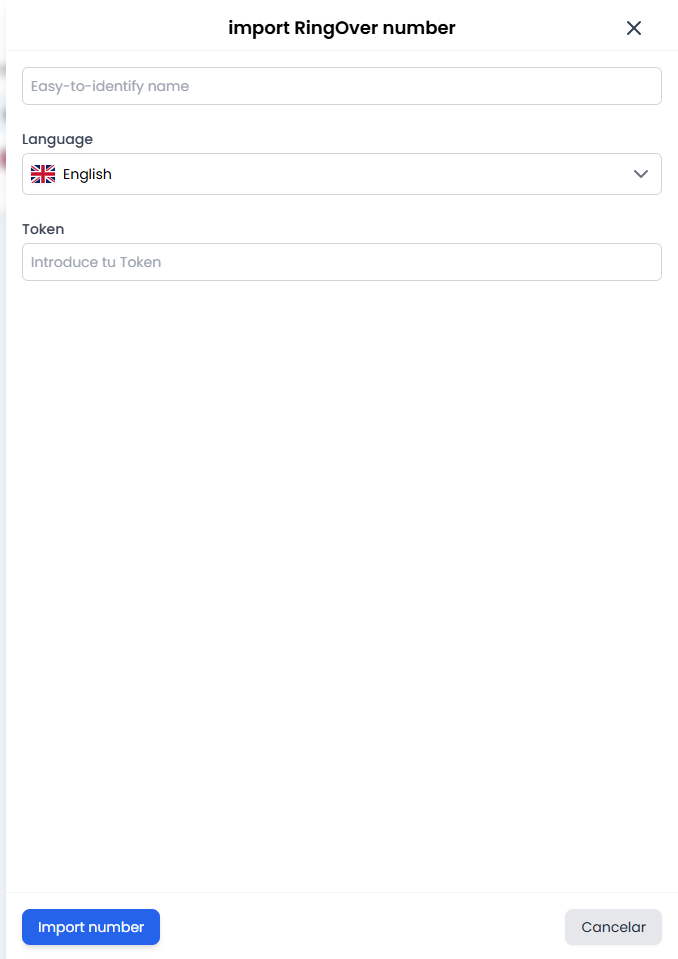 * **Internal Name:** Just like before, give it a recognisable name.
* **Language:** Select the language.
* **Token:** Paste your Ringover security key.
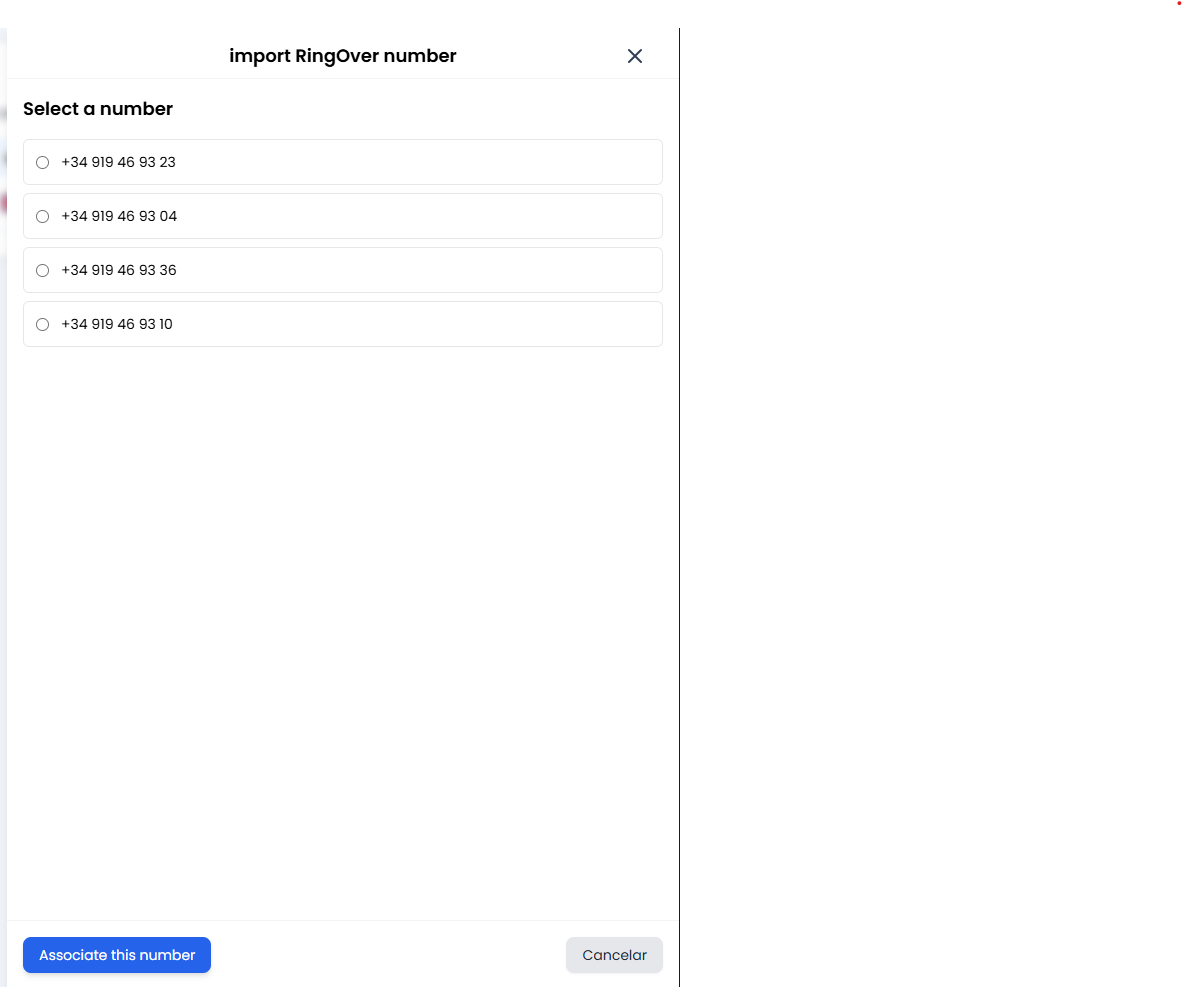
* **The magic 🪄:** When you click "Import", you don't have to type the number in manually. The system will connect to Ringover, show you a dropdown list with **all your available numbers**, and you just have to click the one you want to use. It’s that easy!
* **Internal Name:** Just like before, give it a recognisable name.
* **Language:** Select the language.
* **Token:** Paste your Ringover security key.
* **The magic 🪄:** When you click "Import", you don't have to type the number in manually. The system will connect to Ringover, show you a dropdown list with **all your available numbers**, and you just have to click the one you want to use. It’s that easy!
 ***
### 🤖 2. Management: Assigning a voice to your number
Brilliant! You now have the number on the platform. So, who answers it?
In your numbers management view, you will see the configuration for your **AI Assistants**.
* **Assistant Selector:** Here you'll see a dropdown menu. **Heads up:** You won't see all your chatbots here. The system is smart and *will only show you assistants that actually have voice capabilities* (Voice AI).
* **Assistant Language:** Define which language your assistant will speak and listen in during the call. Make sure it matches the audience calling that number.
***
### 🎓 Best Practice Summary (Cheat Sheet)
* **Descriptive names:** Don't call your number "Number 1". Use names like `Support_Line_ES` or `Sales_Miami_US`. Your future self will thank you when you have 20 imported numbers to manage.
* **Mind the languages:** If you import a US number (+1) but set the assistant's language to Spanish (`es`), the bot will speak Spanish to customers who were likely expecting English. **Always align the dialling code with your Assistant's language.**
* **Token security:** Tokens are passwords. Copy them directly from Twilio or Ringover and make sure you don't accidentally leave any blank spaces at the end when pasting them.
***
### 🆘 Quick Troubleshooting
| Problem | Likely Fix 🔧 |
| :--------------------------------------------- | :------------------------------------------------------------------------------------------------------------------------------------------------------------------------- |
| **Twilio says "Verification error"** | Double-check that the **SID** and **Token** are correct and don't have any hidden spaces at the end. Also, ensure the number is currently active in your Twilio account. |
| **No numbers appear in the list for Ringover** | Verify that your **Token** is valid. If it is, log into your Ringover account and ensure you actually have free or contracted numbers available to use. |
| **The AI Assistants menu is empty** | You can only assign assistants enabled for phone calls. Go to the *Config Agent* module and make sure you have created at least one assistant with **Voice** capabilities. |
**You're all set for your AI to start answering calls like a pro! 📞🚀**
***
### 🤖 2. Management: Assigning a voice to your number
Brilliant! You now have the number on the platform. So, who answers it?
In your numbers management view, you will see the configuration for your **AI Assistants**.
* **Assistant Selector:** Here you'll see a dropdown menu. **Heads up:** You won't see all your chatbots here. The system is smart and *will only show you assistants that actually have voice capabilities* (Voice AI).
* **Assistant Language:** Define which language your assistant will speak and listen in during the call. Make sure it matches the audience calling that number.
***
### 🎓 Best Practice Summary (Cheat Sheet)
* **Descriptive names:** Don't call your number "Number 1". Use names like `Support_Line_ES` or `Sales_Miami_US`. Your future self will thank you when you have 20 imported numbers to manage.
* **Mind the languages:** If you import a US number (+1) but set the assistant's language to Spanish (`es`), the bot will speak Spanish to customers who were likely expecting English. **Always align the dialling code with your Assistant's language.**
* **Token security:** Tokens are passwords. Copy them directly from Twilio or Ringover and make sure you don't accidentally leave any blank spaces at the end when pasting them.
***
### 🆘 Quick Troubleshooting
| Problem | Likely Fix 🔧 |
| :--------------------------------------------- | :------------------------------------------------------------------------------------------------------------------------------------------------------------------------- |
| **Twilio says "Verification error"** | Double-check that the **SID** and **Token** are correct and don't have any hidden spaces at the end. Also, ensure the number is currently active in your Twilio account. |
| **No numbers appear in the list for Ringover** | Verify that your **Token** is valid. If it is, log into your Ringover account and ensure you actually have free or contracted numbers available to use. |
| **The AI Assistants menu is empty** | You can only assign assistants enabled for phone calls. Go to the *Config Agent* module and make sure you have created at least one assistant with **Voice** capabilities. |
**You're all set for your AI to start answering calls like a pro! 📞🚀**