> ## Documentation Index
> Fetch the complete documentation index at: https://docs.lovi.ai/llms.txt
> Use this file to discover all available pages before exploring further.
# Tags
> In this section, tags are created and managed, allowing conversations to be classified and organised according to their topic or context.
 A conversation without labels is a conversation lost.
**Tags** are the digital “stickers” you use to classify your chats. They let you instantly see in Livechat whether a customer is happy, angry, or already converted. They’re also essential for analytics, helping you understand *what* people are really talking about with your bot.
***
### 🎛️ Your Tag Collection
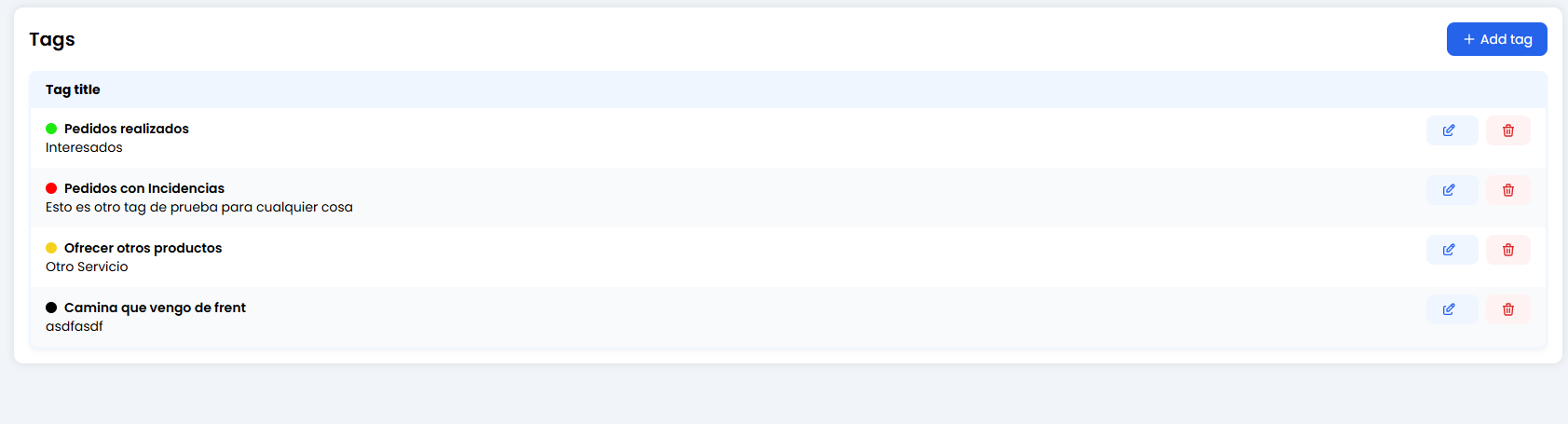
In the main view, you’ll see the full inventory of available tags.
* **Title (Bold):** The short name of the tag (e.g. `Orders Completed`).
* **Description (Subtitle):** A quick reminder explaining when to use it (e.g. `Interested users`).
* **Colour Dot:** Crucial for visual prioritisation (Red = Risk, Green = Success).
***
### 🎨 Creating a New Tag (+ Add Tag)
A conversation without labels is a conversation lost.
**Tags** are the digital “stickers” you use to classify your chats. They let you instantly see in Livechat whether a customer is happy, angry, or already converted. They’re also essential for analytics, helping you understand *what* people are really talking about with your bot.
***
### 🎛️ Your Tag Collection
In the main view, you’ll see the full inventory of available tags.
* **Title (Bold):** The short name of the tag (e.g. `Orders Completed`).
* **Description (Subtitle):** A quick reminder explaining when to use it (e.g. `Interested users`).
* **Colour Dot:** Crucial for visual prioritisation (Red = Risk, Green = Success).
***
### 🎨 Creating a New Tag (+ Add Tag)
 When creating a tag, you define three simple but powerful elements:
#### 1. Tag Name (The Title)
This is the keyword you’ll see in the chat.
* **Restriction:** Maximum **25 characters**. Keep it short.
* *Tip:* Even if the system supports underscores (`_`), you can use spaces if it’s clearer.
* *Good:* `Closed Sale` or `Incident`.
* *Bad:* `Customer who has a problem with shipping` (far too long!).
#### 2. Tag Description (The Guide)
This text appears under the title in the list.
* It helps your human team (or your future self) understand exactly when this tag should be applied.
* *Example:* “Use only when the customer has paid and received confirmation.”
#### 3. Tag Colour (The Traffic Light) 🚦
Assign a visual meaning to each tag.
* 🔴 **Red:** Problems, complaints, or errors (`Incident`, `Bug`, `Angry Customer`).
* 🟡 **Yellow:** Pending items or open questions (`Question`, `Waiting for Info`).
* 🟢 **Green:** Successes and sales (`Sale`, `Resolved`, `Happy Customer`).
* ⚫ **Black/Grey:** Neutral categories (`Information`, `Opening Hours`).
***
### 🚀 Where are these tags used?
Once created here, tags come to life in two key places:
1. **Livechat:** Human agents can manually apply tags to conversations before closing them.
2. **Analytics:** You can measure how many chats are tagged as `Incident` vs `Sales` and make better business decisions.
**Organise your inbox! Create your tags and start adding colour to your conversations. 🎨**
When creating a tag, you define three simple but powerful elements:
#### 1. Tag Name (The Title)
This is the keyword you’ll see in the chat.
* **Restriction:** Maximum **25 characters**. Keep it short.
* *Tip:* Even if the system supports underscores (`_`), you can use spaces if it’s clearer.
* *Good:* `Closed Sale` or `Incident`.
* *Bad:* `Customer who has a problem with shipping` (far too long!).
#### 2. Tag Description (The Guide)
This text appears under the title in the list.
* It helps your human team (or your future self) understand exactly when this tag should be applied.
* *Example:* “Use only when the customer has paid and received confirmation.”
#### 3. Tag Colour (The Traffic Light) 🚦
Assign a visual meaning to each tag.
* 🔴 **Red:** Problems, complaints, or errors (`Incident`, `Bug`, `Angry Customer`).
* 🟡 **Yellow:** Pending items or open questions (`Question`, `Waiting for Info`).
* 🟢 **Green:** Successes and sales (`Sale`, `Resolved`, `Happy Customer`).
* ⚫ **Black/Grey:** Neutral categories (`Information`, `Opening Hours`).
***
### 🚀 Where are these tags used?
Once created here, tags come to life in two key places:
1. **Livechat:** Human agents can manually apply tags to conversations before closing them.
2. **Analytics:** You can measure how many chats are tagged as `Incident` vs `Sales` and make better business decisions.
**Organise your inbox! Create your tags and start adding colour to your conversations. 🎨**