> ## Documentation Index
> Fetch the complete documentation index at: https://docs.lovi.ai/llms.txt
> Use this file to discover all available pages before exploring further.
# Campaigns
> In this section, you can view, group, and manage WhatsApp campaigns that have already been created and executed using pre-configured templates.
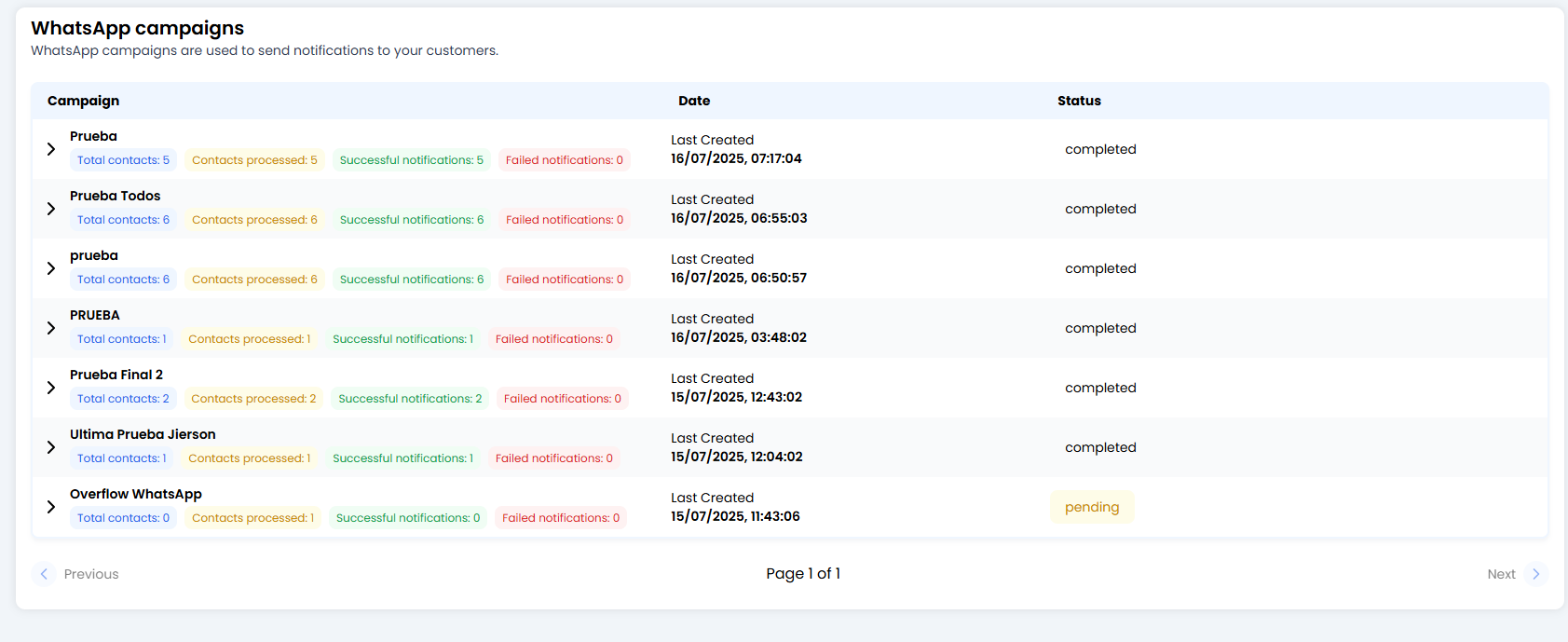 You already have your template approved. You’ve launched the message. Now the big question is: **“Has it reached anyone?”** 🤔
This module is your **Results Centre**. You don’t *create* campaigns here (that comes later); here, you **analyse** them. This is where you come to see whether your messages landed on your customers’ phones or hit a wall.
***
### 🗂️ Your Campaign Inbox (Overview)
To keep everything organised, the system is smart: **it groups campaigns by name**.
* If you launched a campaign called “Summer Offer” on Monday and another with the same name on Friday, they will appear together in a single folder.
* **The main row (the summary):** shows the total figures from all the times you have run that campaign.
***
### 🔍 The Magnifying Glass: Execution Details
Click the **little arrow (>)** to the left of the campaign name to expand the history.
You already have your template approved. You’ve launched the message. Now the big question is: **“Has it reached anyone?”** 🤔
This module is your **Results Centre**. You don’t *create* campaigns here (that comes later); here, you **analyse** them. This is where you come to see whether your messages landed on your customers’ phones or hit a wall.
***
### 🗂️ Your Campaign Inbox (Overview)
To keep everything organised, the system is smart: **it groups campaigns by name**.
* If you launched a campaign called “Summer Offer” on Monday and another with the same name on Friday, they will appear together in a single folder.
* **The main row (the summary):** shows the total figures from all the times you have run that campaign.
***
### 🔍 The Magnifying Glass: Execution Details
Click the **little arrow (>)** to the left of the campaign name to expand the history.
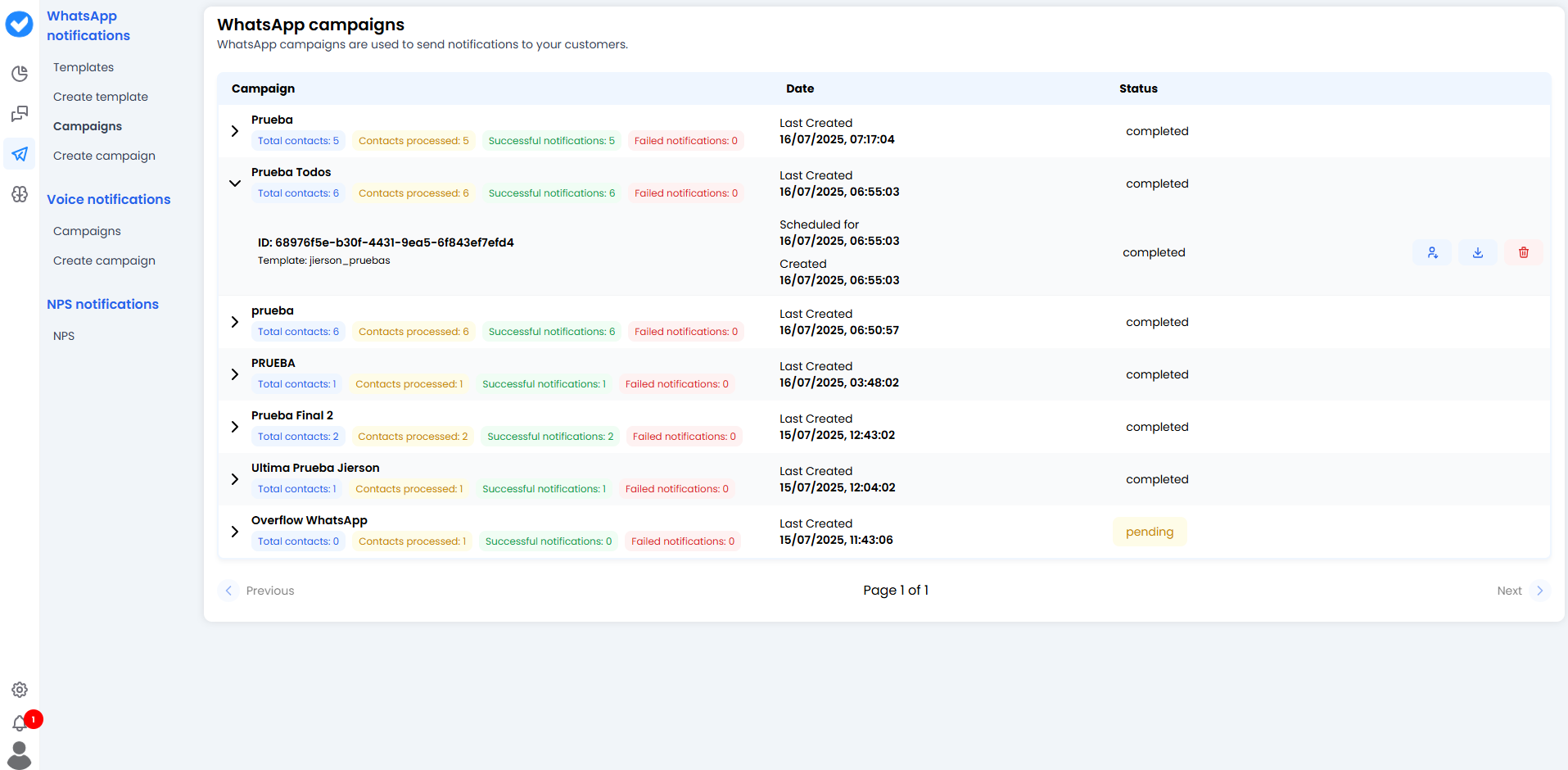 Here you will see each individual “run” with its full ID:
* **Date:** When it was sent (or when it is scheduled to be sent).
* **Template:** Which template was used (e.g. `promo_black_friday`).
* **Status:**
* ✅ **Completed:** Everything has been sent.
* ⏳ **Pending:** It is in the queue or scheduled for the future.
***
### 🚦 The Traffic Light of Results (Metrics)
The most important part is the **colour-coded figures**. They show the health of your campaign at a glance:
* 🔵 **Total Contacts:** How many people you attempted to send messages to.
* 🟡 **Contacts Processed:** How many the system has already processed.
* 🟢 **Successful Notifications:** **The key metric.** How many messages were successfully delivered to WhatsApp’s servers.
* 🔴 **Failed Notifications:** Messages that did not go through.
* *Why do they fail?* The number may not have WhatsApp, the user may have blocked you, or Meta may have restricted your template.
***
### 🛠️ Available Actions
On the right of each execution you have three handy buttons:
1. **📥 Download Report:** A full report for Excel lovers.
2. **👥 Download Contacts:** Download the exact list of people targeted in this campaign. Useful for retrying only the failed ones in a new campaign.
3. **🗑️ Delete Campaign:** Delete the record. (Be careful — this removes the results history, so make sure you don’t need it for audits.)
***
### 🎓 Best Practice Summary
* **Watch the Reds (Failed):** If you have too many failures (more than 5%), stop the campaign. Your database may be dirty (invalid numbers) or outdated. Meta penalises high failure rates.
* **Clean-up:** Use the “Download Contacts” button from a successful campaign to build “Active Users” segments for the future.
* **Consistent naming:** If you always call your campaigns “Test 1”, “Test 2”, you’ll end up with a messy list. Use names like `Newsletter_January` so the automatic grouping works in your favour.
**Analyse, learn, and optimise your next send! 📈**
Here you will see each individual “run” with its full ID:
* **Date:** When it was sent (or when it is scheduled to be sent).
* **Template:** Which template was used (e.g. `promo_black_friday`).
* **Status:**
* ✅ **Completed:** Everything has been sent.
* ⏳ **Pending:** It is in the queue or scheduled for the future.
***
### 🚦 The Traffic Light of Results (Metrics)
The most important part is the **colour-coded figures**. They show the health of your campaign at a glance:
* 🔵 **Total Contacts:** How many people you attempted to send messages to.
* 🟡 **Contacts Processed:** How many the system has already processed.
* 🟢 **Successful Notifications:** **The key metric.** How many messages were successfully delivered to WhatsApp’s servers.
* 🔴 **Failed Notifications:** Messages that did not go through.
* *Why do they fail?* The number may not have WhatsApp, the user may have blocked you, or Meta may have restricted your template.
***
### 🛠️ Available Actions
On the right of each execution you have three handy buttons:
1. **📥 Download Report:** A full report for Excel lovers.
2. **👥 Download Contacts:** Download the exact list of people targeted in this campaign. Useful for retrying only the failed ones in a new campaign.
3. **🗑️ Delete Campaign:** Delete the record. (Be careful — this removes the results history, so make sure you don’t need it for audits.)
***
### 🎓 Best Practice Summary
* **Watch the Reds (Failed):** If you have too many failures (more than 5%), stop the campaign. Your database may be dirty (invalid numbers) or outdated. Meta penalises high failure rates.
* **Clean-up:** Use the “Download Contacts” button from a successful campaign to build “Active Users” segments for the future.
* **Consistent naming:** If you always call your campaigns “Test 1”, “Test 2”, you’ll end up with a messy list. Use names like `Newsletter_January` so the automatic grouping works in your favour.
**Analyse, learn, and optimise your next send! 📈**