> ## Documentation Index
> Fetch the complete documentation index at: https://docs.lovi.ai/llms.txt
> Use this file to discover all available pages before exploring further.
# NPS Surveys
> This section is used to configure NPS (Net Promoter Score) surveys, which measure service satisfaction and obtain real feedback from users after an interaction.
 What isn’t measured can’t be improved.
This is where you configure your agent’s “final exam”. NPS (*Net Promoter Score*) is that famous question: **“On a scale from 0 to 10, how likely are you to recommend us?”**.
This module is used to **automate the sending of this survey right after a conversation ends**. That way, you’ll know whether your bot is a genius or if it’s annoying your customers.
***
### 🎛️ The Control Panel (Your Survey List)
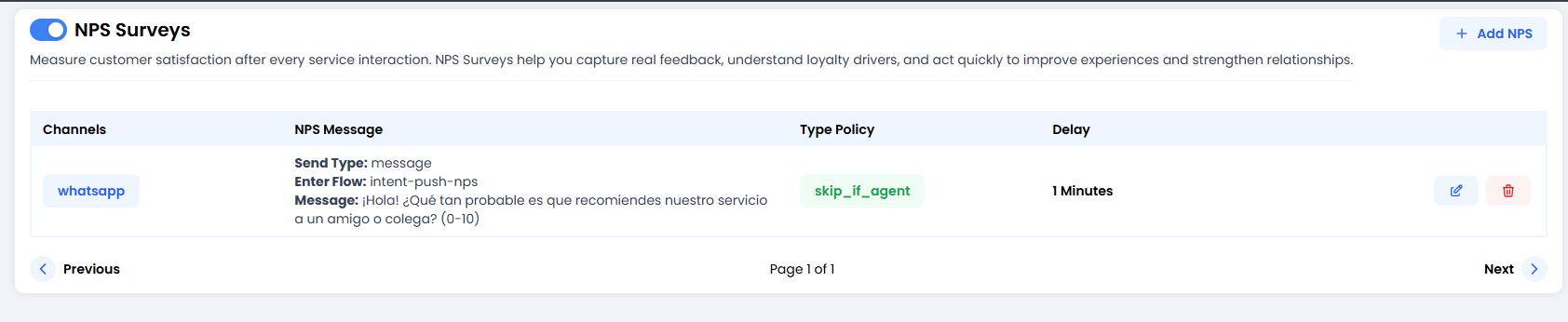
You’ll see a list of active survey rules. The most important thing here is the global switch in the top-left corner: **NPS Surveys Toggle**. If it’s turned off, no one will receive surveys.
Each row shows you:
* **Channels:** Where it will be sent (e.g. `whatsapp`).
* **NPS Message:** The exact text the customer will see.
* **Type Policy:** The golden rule (e.g. `skip_if_agent`).
* **Delay:** How long the system waits before sending the question.
***
### 🛠️ Configuring a New Survey (Edit/Create)
What isn’t measured can’t be improved.
This is where you configure your agent’s “final exam”. NPS (*Net Promoter Score*) is that famous question: **“On a scale from 0 to 10, how likely are you to recommend us?”**.
This module is used to **automate the sending of this survey right after a conversation ends**. That way, you’ll know whether your bot is a genius or if it’s annoying your customers.
***
### 🎛️ The Control Panel (Your Survey List)
You’ll see a list of active survey rules. The most important thing here is the global switch in the top-left corner: **NPS Surveys Toggle**. If it’s turned off, no one will receive surveys.
Each row shows you:
* **Channels:** Where it will be sent (e.g. `whatsapp`).
* **NPS Message:** The exact text the customer will see.
* **Type Policy:** The golden rule (e.g. `skip_if_agent`).
* **Delay:** How long the system waits before sending the question.
***
### 🛠️ Configuring a New Survey (Edit/Create)
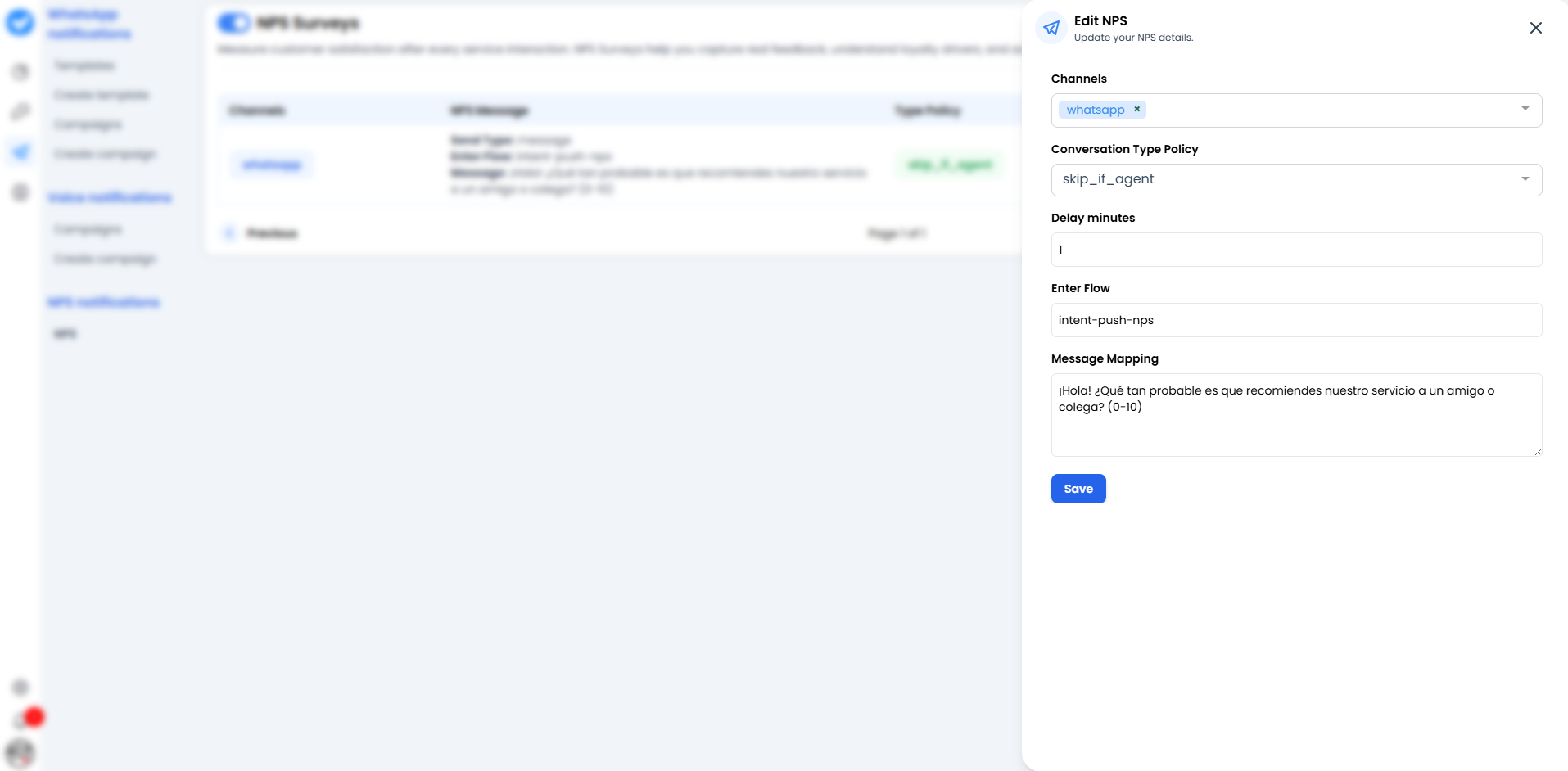 When you click **+ Add NPS** (or the edit pencil), you’ll see this side form. Let’s go step by step, because the logic here is key:
#### 1. Channels 📱
Where do we send this?
* Choose the channel (usually `whatsapp`). You can have different rules for different channels.
#### 2. Conversation Type Policy 🚦
This is where you define **when NOT to send the survey**.
* **`skip_if_agent`**: This is the most common and smartest option. It means: *“If the conversation was ended by a human (a real agent), do NOT send the automatic survey.”*
* *Why?* Because the human has probably already said goodbye, or the conversation may have been tense and you don’t want to automatically add fuel to the fire.
* If you leave it empty or configure a different policy, the survey will always be sent.
#### 3. Delay minutes ⏳
The courtesy period.
* If you set it to `1`, the system will wait **1 minute** of complete inactivity after the ticket is closed before sending the question.
* *Tip:* Don’t set it to `0`. Give the customer some breathing room.
#### 4. Enter Flow 🔀
This is the technical “event name” that triggers the survey.
* By default, it is usually `intent-push-nps`.
* This tells the agent’s brain: *“Switch to survey mode and stop trying to chat normally.”*
#### 5. Message Mapping 💬
The sacred text.
* Write the question here.
* *Example:* “Hi! 👋 To help us improve, how likely are you to recommend our service to a friend? (Reply with a number from 0 to 10).”
***
### 🚀 How does it work in real life?
1. The customer finishes talking to your bot.
2. The conversation is marked as “Finished” (or the *timeout* expires).
3. The system waits for the configured `Delay` (e.g. 1 minute).
4. If the `Policy` is met (e.g. no human agent intervened), boom! The WhatsApp message is sent.
5. The customer replies with a number.
6. That number is saved in your analytics so you can later show off (or cry) with your boss.
**Set it up and start listening to the truth! 👂**
When you click **+ Add NPS** (or the edit pencil), you’ll see this side form. Let’s go step by step, because the logic here is key:
#### 1. Channels 📱
Where do we send this?
* Choose the channel (usually `whatsapp`). You can have different rules for different channels.
#### 2. Conversation Type Policy 🚦
This is where you define **when NOT to send the survey**.
* **`skip_if_agent`**: This is the most common and smartest option. It means: *“If the conversation was ended by a human (a real agent), do NOT send the automatic survey.”*
* *Why?* Because the human has probably already said goodbye, or the conversation may have been tense and you don’t want to automatically add fuel to the fire.
* If you leave it empty or configure a different policy, the survey will always be sent.
#### 3. Delay minutes ⏳
The courtesy period.
* If you set it to `1`, the system will wait **1 minute** of complete inactivity after the ticket is closed before sending the question.
* *Tip:* Don’t set it to `0`. Give the customer some breathing room.
#### 4. Enter Flow 🔀
This is the technical “event name” that triggers the survey.
* By default, it is usually `intent-push-nps`.
* This tells the agent’s brain: *“Switch to survey mode and stop trying to chat normally.”*
#### 5. Message Mapping 💬
The sacred text.
* Write the question here.
* *Example:* “Hi! 👋 To help us improve, how likely are you to recommend our service to a friend? (Reply with a number from 0 to 10).”
***
### 🚀 How does it work in real life?
1. The customer finishes talking to your bot.
2. The conversation is marked as “Finished” (or the *timeout* expires).
3. The system waits for the configured `Delay` (e.g. 1 minute).
4. If the `Policy` is met (e.g. no human agent intervened), boom! The WhatsApp message is sent.
5. The customer replies with a number.
6. That number is saved in your analytics so you can later show off (or cry) with your boss.
**Set it up and start listening to the truth! 👂**